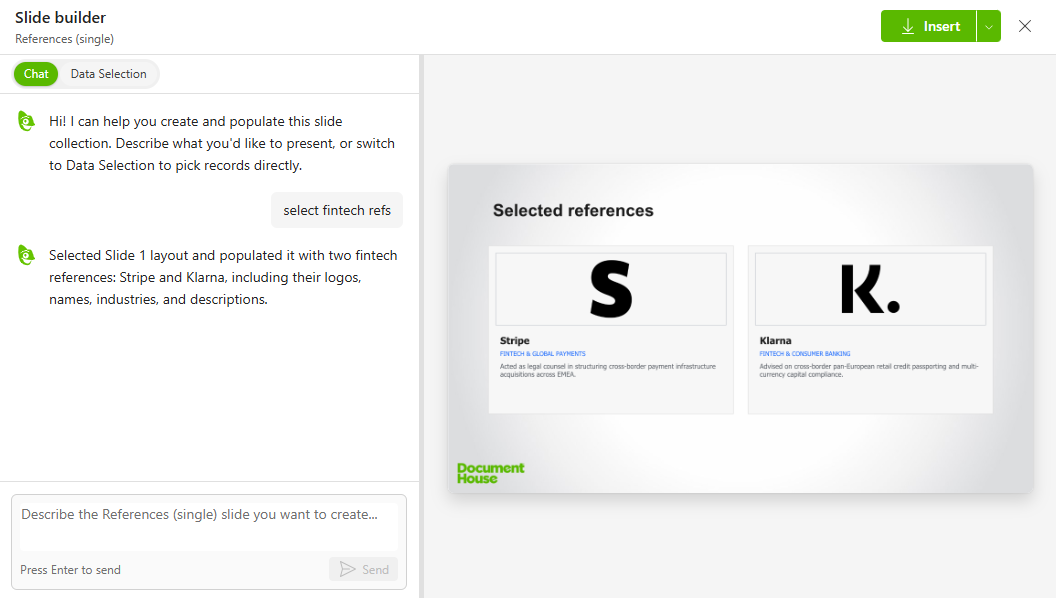
AI-Powered Slide Sets allow you to automatically generate on-brand PowerPoint slides directly from your Hub data sources. By combining structured data with smart placeholder templates, Kameleon automatically populates text and images into the best-fitting layout for your content.
Instructions
1. Prepare the Data Source
Create a new Kameleon data source or select and existing one in Hub Data sources
2. Prepare new slides
Create a new branded PowerPoint presentation containing your layout and dynamic placeholders:
-
Text Placeholders: Label fields using double curly brackets and an index number (e.g.,
{{Customer 1 name}},{{Customer 1 industry}},{{Customer 2 name}}).-
Note on indexing: The index number indicates to the AI how many rows or items should appear on that specific slide layout.
-
-
Image Placeholders: Rename the target shape or picture placeholder in PowerPoint's Selection Pane using the same indexed naming convention (e.g.,
{{Customer 1 logo}}). -
Flexible Mapping: Placeholder labels do not need to match your data source column names verbatim. The AI intelligently maps fields based on context.
-
Layout Variations: A presentation can contain multiple slide variations to fit different result counts (e.g., separate layouts designed for 2, 3, 4, or 5 references).
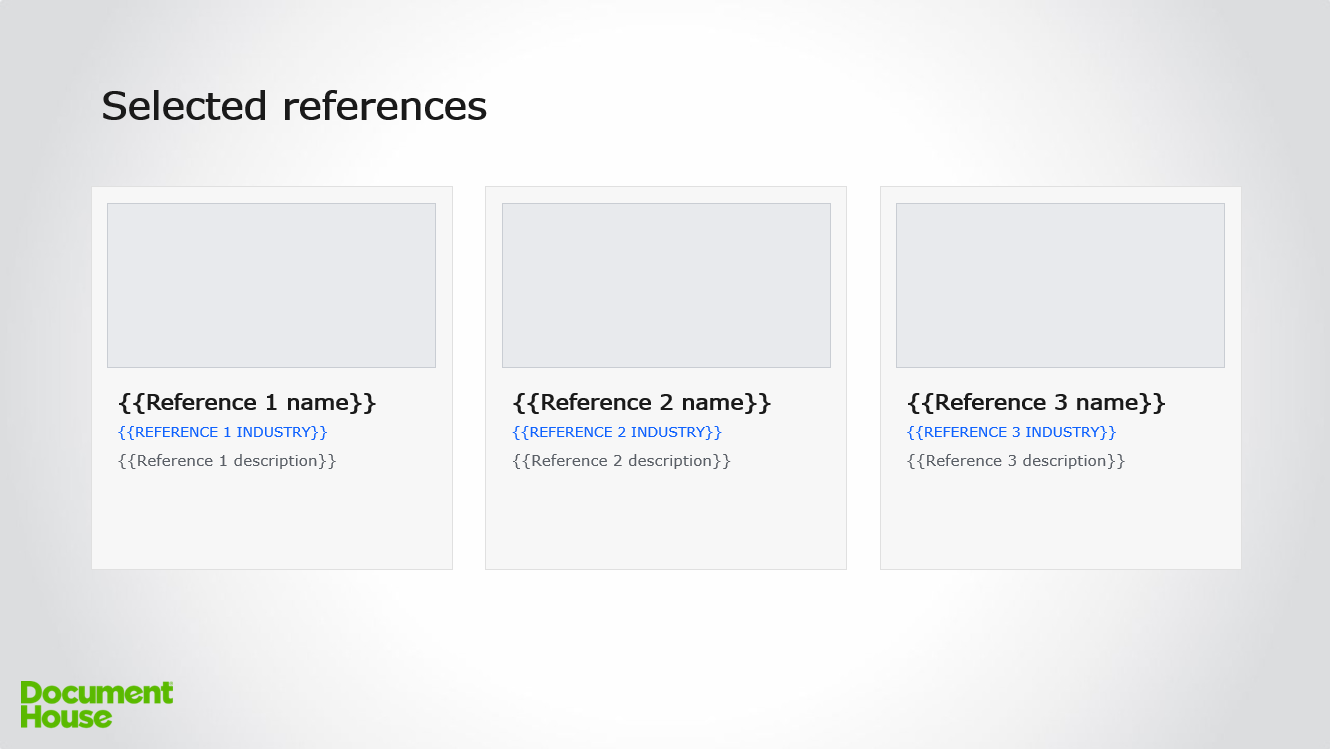
Presentation can have many slides e.g. reference slide with 2,3,4,5 references.
3. Create new slide set in Hub
Create new Slide set in Hub from file created in step 2
-
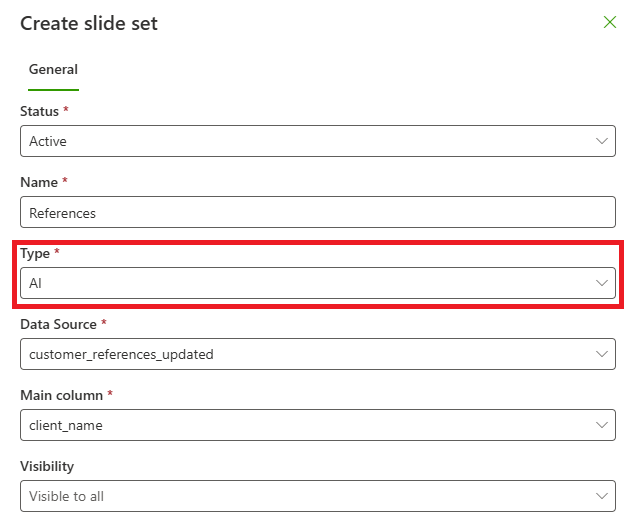
Type: Choose AI
-
Data Source: Select the Kameleon data source configured in Step 1.
-
Main column: Choose the unique identifier column for each record (e.g., Customer Name for a reference slide, or Employee Name for a CV/team slide).